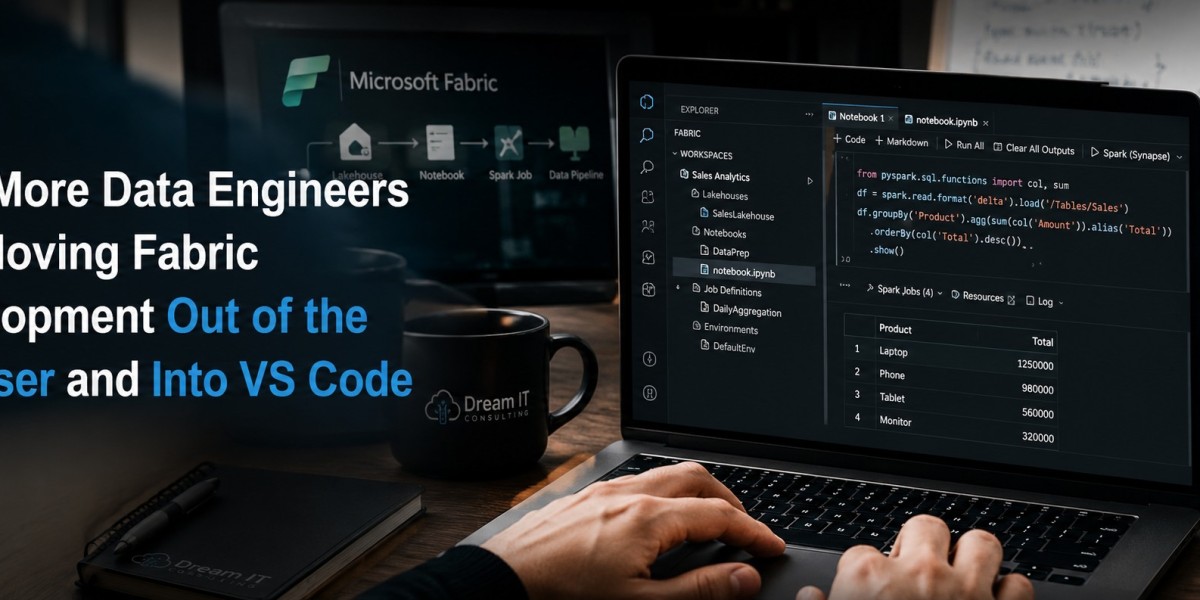

There's a particular kind of fatigue that sets in after months of editing Spark job definitions inside a browser tab. You click into a cell, make a change, then try to figure out what actually happened by squinting at raw JSON instead of a clean diff. It works, technically. But it doesn't feel like engineering. It feels like data entry wearing an engineer's badge.
That's the exact frustration pushing a growing number of teams to pull Microsoft Fabric workspace items directly into VS Code instead of managing everything through the browser portal. And once you make the switch, it's easy to see why people describe it as realizing how much friction they'd quietly gotten used to tolerating.
The Browser Was Never Built for Serious Development
Fabric's browser UI is perfectly fine for the occasional quick edit. But the moment your notebooks or Spark job definitions grow past a certain size, the cracks start to show. There's no real code intelligence. Comparing versions means scanning through walls of JSON rather than a proper diff view. And working across multiple files at once basically isn't an option.
The Microsoft Fabric extension for VS Code, paired with the Fabric Data Engineering extension, closes most of that gap. Once connected, you get real IntelliSense on your notebook code, actual Git diffs instead of raw JSON, and the ability to work across several notebooks or Spark job definitions in the same session. For teams doing any serious amount of notebook development, that's not a minor convenience, it's the difference between coding and clicking.
It's worth saying, too, that better tooling only gets you so far without the process to back it up. Teams rolling this out across an engineering group tend to get more value from it when they've also thought through governance and workflow patterns ahead of time, rather than bolting them on after the fact.
Know What You're Actually Getting
It's easy to get excited about a shiny new extension, so it helps to be clear-eyed about scope before you commit. The Microsoft Fabric extension lets you sign in, browse workspaces, and open or edit supported items. The Fabric Data Engineering extension is where the real work happens, and it's focused specifically on notebooks, Spark job definitions, environments, and lakehouses.
What works well in VS Code:
Notebooks — create, edit, and run them locally, or execute against remote Spark compute
Spark job definitions — full create, read, update, and delete support
Lakehouses — browse tables and files, preview data, copy paths
Environments — inspect hardware profiles, libraries, and Spark configuration
What doesn't work yet: pipelines and dataflows. They simply don't show up as editable files inside VS Code. That's a real limitation, not a minor footnote. If your work leans heavily on notebooks and Spark, the trade-off is a clear win. If pipeline orchestration is a big part of your day, you'll still be bouncing back to the browser for that piece.
Two Ways to Work: Local Mode and VFS Mode
The Fabric Data Engineering extension gives you two different ways to handle files. Local mode downloads items to a working folder on your machine, where you edit them and publish changes back to sync with the remote workspace. It feels familiar if you're used to a standard Git loop of clone, edit, commit, push.
VFS, or Virtual File System, mode skips the download step entirely. You open and edit workspace items directly as remote files, with nothing stored locally, and you can connect multiple workspaces to a single VS Code window. It's faster to jump into and tends to shine for anyone juggling several workspaces in a single day.
Either way, publishing triggers a proper merge flow. If a colleague has the same notebook open in the browser portal, they get notified and can accept or reject your changes, with any conflicts resolved through a VS Code diff editor instead of manual copy-pasting between tabs.
Where GitHub Copilot CLI Fits In
VS Code isn't the only part of this shift. GitHub Copilot CLI has become a genuinely useful companion for managing Fabric from the terminal, and it works alongside the VS Code extensions rather than competing with them. It installs with a single command, authenticates through your GitHub credentials, and inherits your organization's existing Copilot policies automatically.
For Fabric specifically, there are published agent skills and MCP servers that teach Copilot CLI how to call the right Fabric APIs, lay out a medallion architecture, or check a pipeline's status using plain language. The real payoff shows up when it's connected back to your editor: it can use your current selection as context, show proposed changes as side-by-side diffs before you accept them, and even help close some of the pipeline and dataflow monitoring gap that the extensions alone don't cover.
The Setup Gotchas That Catch People Off Guard
A few things trip up almost everyone the first time around. Authentication gets finicky fast if your VS Code account doesn't match the Entra ID account tied to your Fabric tenant, so it's worth signing out and back in cleanly through the correct account before connecting anything.
The bigger one: your Azure DevOps org or GitHub repo needs to sit under the same Entra ID tenant as your Fabric capacity. If it doesn't, the extension won't throw a helpful error. It just sits there showing nothing, which looks exactly like a permissions problem when it's really a tenant mismatch. It's the kind of detail that can eat an entire afternoon if nobody flags it upfront.
Is It Actually Worth Switching?
If most of your Fabric work centers on notebooks and Spark job development, yes, with one caveat. The jump from browser-based cell editing to a real IDE experience is a genuine productivity upgrade, not just a nicer interface. But it's not a wholesale replacement for the Fabric workspace UI. Pipelines and dataflows still require the portal, even if Copilot CLI can help close some of that gap for monitoring and automation.
For teams ready to make the move, Dream IT Consulting put together a detailed, step-by-step walkthrough covering the full setup process, the local mode versus VFS mode decision, and every gotcha worth knowing before you start: Managing Microsoft Fabric Workspace Items Directly in VS Code: A Practical Guide.