
If your computer feels like it is wading through mud every time you open a program, chances are your aging hard drive is the culprit. The good news is that swapping in a solid state drive is one of the simplest, most rewarding upgrades you can make, and you do not need to be a tech wizard to pull it off. Whether you are chasing faster boot times, quicker load screens in your favorite games, or just a snappier overall experience, this guide walks you through the entire process step by step, so you can complete the job confidently and without frying anything important along the way.
Before you even open your case, though, the first decision you need to make is what to actually purchase. If you plan to buy SSD for PC upgrades, it pays to slow down and research your options rather than grabbing the first drive you see on a shelf. Storage interfaces, capacities, and read and write speeds vary widely, and choosing the wrong one can mean wasted money or a drive that is not even compatible with your motherboard. Taking a few extra minutes here will save you hours of frustration later.
Why Upgrading to an SSD Makes Such a Big Difference
Traditional hard disk drives rely on spinning platters and a mechanical arm to read and write data, which introduces a natural speed limit. Solid state drives, on the other hand, use flash memory chips with no moving parts, so data can be accessed almost instantly. This difference translates into real world benefits that you will notice immediately, from a computer that boots in seconds rather than minutes to applications that launch the moment you click them.
Beyond raw speed, SSDs are also more durable since there are no fragile moving components to wear out or get knocked out of alignment. They run quieter, produce less heat, and consume less power, which is especially helpful if you are upgrading a laptop and want to squeeze out extra battery life. Once you experience the difference, it becomes clear why so many people consider this the single best upgrade for extending the life of an aging machine.
Finding the Best SSD for PC Upgrade Projects
When people search for the best SSD for PC upgrade options, they usually fall into one of two camps: those wanting a straightforward SATA drive for simplicity and budget friendliness, and those wanting the blazing speed of an NVMe drive that plugs directly into the motherboard. SATA SSDs are excellent for older systems since they use the same connectors as traditional hard drives, making installation familiar and painless. NVMe drives, meanwhile, connect via the M.2 slot and can be several times faster, which makes them ideal for gaming rigs, video editing workstations, or anyone who simply wants the fastest possible experience.
Consequently, the best SSD for PC upgrade choice really depends on your specific motherboard and how you plan to use your computer. Before buying anything, check your motherboard's manual or manufacturer website to confirm which interfaces it supports. Installing an NVMe drive in a system that only supports SATA simply will not work, so this step is not optional.
Preparing Before You Touch a Single Screw
Preparation is where most successful upgrades are won or lost, and rushing this stage is the number one reason people run into trouble. First and foremost, back up everything. Even if your plan is to clone your old drive rather than do a fresh install, unexpected issues can occur, and having a backup on an external drive or cloud service gives you peace of mind throughout the process.
Next, gather your tools. Most desktop upgrades require nothing more than a Phillips head screwdriver, though laptops occasionally need smaller precision screwdrivers. It also helps to have a flat, well lit workspace and, ideally, an anti static wrist strap to protect sensitive components from static electricity, which can silently damage hardware without any visible warning signs.
Checking Compatibility Before You Buy SSD for PC Builds
Compatibility checks are easy to overlook but absolutely essential. Open your case or check your laptop's specifications to confirm whether you have an available M.2 slot, a SATA port with a free power and data cable, or both. If you are replacing your only drive, you will also want to verify the physical dimensions, since M.2 drives come in different lengths and your motherboard may only accommodate certain sizes. Taking the time to buy SSD for PC upgrades that actually match your hardware prevents the frustrating scenario of ordering a drive, unboxing it excitedly, and then discovering it simply will not fit.
Desktop Versus Laptop Upgrades: What Changes
While the core principles remain the same, the actual experience of upgrading a desktop differs quite a bit from upgrading a laptop. Desktops generally offer more room to work, multiple drive bays, and easier access to internal components, which makes the entire process more forgiving for beginners. If something feels tight or awkward, you usually have the space to reposition cables or components without much hassle.
Laptops, on the other hand, demand a bit more patience. Many models require you to remove several tiny screws, detach a battery connector, and sometimes even lift away a keyboard or trackpad assembly just to reach the drive bay. Because laptop components are more tightly packed and often more fragile, it helps to look up a teardown guide specific to your exact model before you begin. Even so, once you have located the M.2 slot or SATA connector, the actual installation steps mirror those of a desktop, just performed in a smaller and more delicate space.
Step by Step: Installing Your New SSD
Once you have your new drive in hand and your backups sorted, the actual installation is refreshingly quick. Start by powering down your computer completely and unplugging it from the wall. If you are working on a desktop, remove the side panel, and if you are working on a laptop, remove the bottom cover according to your manufacturer's instructions.
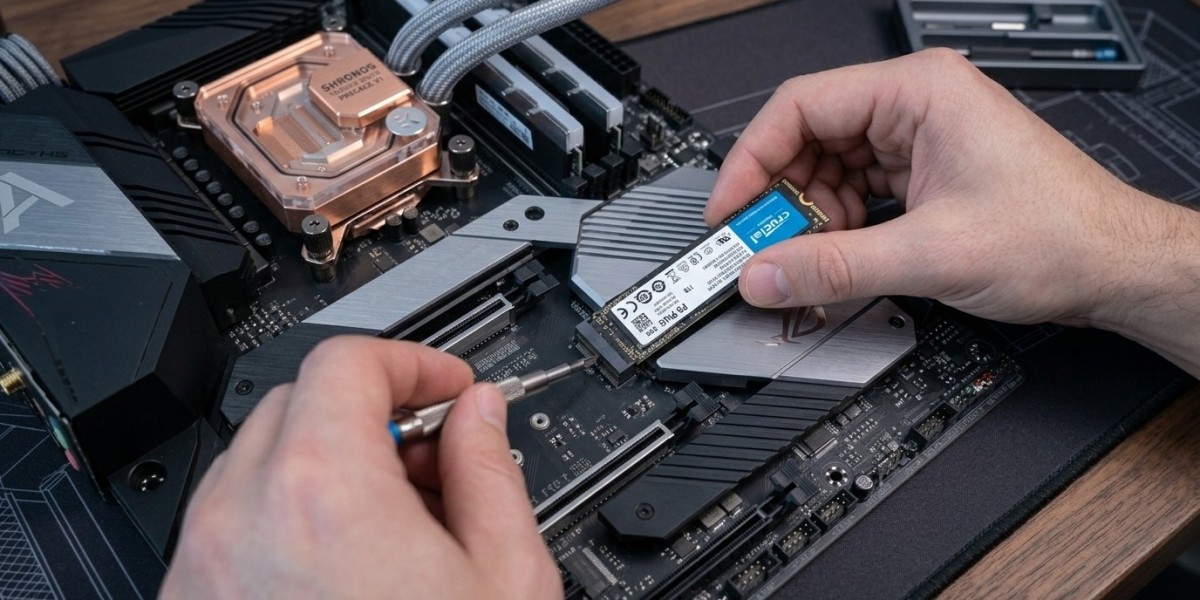
For an M.2 NVMe drive, locate the appropriate slot on the motherboard, insert the drive at a slight angle, and gently press it down before securing it with the small screw provided. For a SATA drive, mount it in an available drive bay using the included screws or tool free brackets, then connect both the SATA data cable and a power cable from your power supply. Afterward, close everything back up, reconnect your peripherals, and power on your machine to confirm the system recognizes the new hardware.
Cloning Versus Fresh Installation
At this point, you have two paths forward. Cloning software allows you to copy everything from your old drive, including your operating system, programs, and files, directly onto the new SSD, so you can boot up exactly where you left off. This approach is convenient and saves considerable time, though it does carry over any existing clutter or software issues from your old setup.
Alternatively, a fresh installation means reinstalling your operating system from scratch, which takes longer but results in a cleaner, often faster running system free of years of accumulated bloat. Many enthusiasts consider a fresh install the better long term choice, especially when pursuing the best SSD for PC upgrade performance possible, since it eliminates background clutter that can quietly slow things down over time.
Testing Your New SSD's Performance
Once your operating system is up and running on the new drive, it is worth taking a few minutes to confirm everything is functioning as expected. Free benchmarking tools can measure your drive's read and write speeds, allowing you to compare the results against the manufacturer's advertised specifications. If the numbers come back noticeably lower than expected, this could indicate that the drive is running in the wrong mode or connected to a slower port than intended, both of which are worth investigating before you settle in.
Beyond raw benchmark numbers, pay attention to how your system actually feels during everyday use. Boot times should drop dramatically, often to well under twenty seconds on modern hardware, and programs that once took a while to open should now launch almost instantly. If your experience does not match these expectations, double check your BIOS settings and cable connections, since a small oversight during installation is usually the root cause.
Common Mistakes to Avoid During the Process
Even a straightforward upgrade can go sideways if you overlook a few key details. One frequent misstep is forgetting to enable AHCI mode in the BIOS, which is necessary for SSDs to perform at their full potential. Another is neglecting to update your motherboard's firmware or drivers beforehand, which can occasionally cause detection issues with newer drives.
It is also worth double checking that your SATA cables are firmly seated, since a loose connection is one of the most common reasons a new drive fails to appear during setup. Finally, resist the urge to force any component into place. If something does not slide in smoothly, stop and reassess rather than applying pressure that could bend a pin or crack a connector.
Post Installation Tweaks Worth Making
After your SSD is installed and your system is running smoothly, a few small adjustments can help you get the most out of it. Disabling defragmentation schedules is important, since SSDs do not need defragmenting the way traditional hard drives do, and doing so unnecessarily can actually shorten the drive's lifespan. Enabling TRIM support, which most modern operating systems handle automatically, also helps maintain performance over time by allowing the drive to manage storage blocks efficiently.
It is also a good idea to check that your system is using the latest storage drivers, particularly for NVMe drives, since manufacturers frequently release updates that improve stability and speed. These small steps only take a few minutes but make a noticeable difference in how consistently your new drive performs months down the road.
Getting the Most Life Out of Your New Drive
Solid state drives are built to last, but a few sensible habits can help you stretch that lifespan even further. Avoid filling your drive to the very brim, since SSDs perform best when they have some breathing room for the controller to manage data efficiently. As a general rule, try to keep at least ten to fifteen percent of the total capacity free at all times.
It also helps to be mindful of how often you write large amounts of data to the drive, since every SSD has a finite number of write cycles, even though modern drives can handle years of normal use without issue. Simple habits, such as directing frequently changing files like browser caches or temporary downloads to a secondary drive if you have one, can reduce unnecessary wear over time. None of this requires obsessive monitoring, but a little awareness goes a long way toward protecting your investment.
Balancing Budget and Capacity When You Buy SSD for PC Systems
Cost is naturally a factor for most people, and thankfully prices for solid state storage have dropped significantly over the past several years. Rather than automatically chasing the largest capacity available, think realistically about how you use your computer. If you primarily browse the web, handle documents, and stream media, a smaller drive paired with cloud storage may be all you need. Gamers, video editors, and anyone working with large media libraries, however, will likely appreciate the extra headroom that a larger capacity provides.
Ultimately, finding the best SSD for PC upgrade value often means striking a balance between speed, capacity, and price rather than simply buying the fastest or largest drive on the market. A slightly smaller NVMe drive frequently offers a better overall experience than a massive SATA drive, so it is worth weighing performance against raw storage space before making your final decision.
Final Thoughts
Upgrading your PC's storage does not have to be an intimidating project reserved for seasoned technicians. With a little preparation, the right tools, and a clear understanding of your system's compatibility requirements, you can transform a sluggish, aging computer into something that feels brand new. From researching the best SSD for PC upgrade options that suit your needs to carefully installing and configuring your new drive, every step in this guide is designed to help you avoid common pitfalls and get lasting results.
So take your time, follow the process methodically, and resist the temptation to skip the preparation stage in favor of jumping straight to installation. A careful, well planned upgrade today means years of faster, smoother computing ahead, without the headaches that come from rushing through the job.